Hard Bounce vs Soft Bounce: What Each Means for Your List
A hard bounce is a permanent delivery failure and a soft bounce a temporary one. How to read the error code, what to do with each type, and the blocks that look like bounces but point at your own sending.
By Muhammed SevimliPublished Updated 7 min readRead in Turkish
Transcript
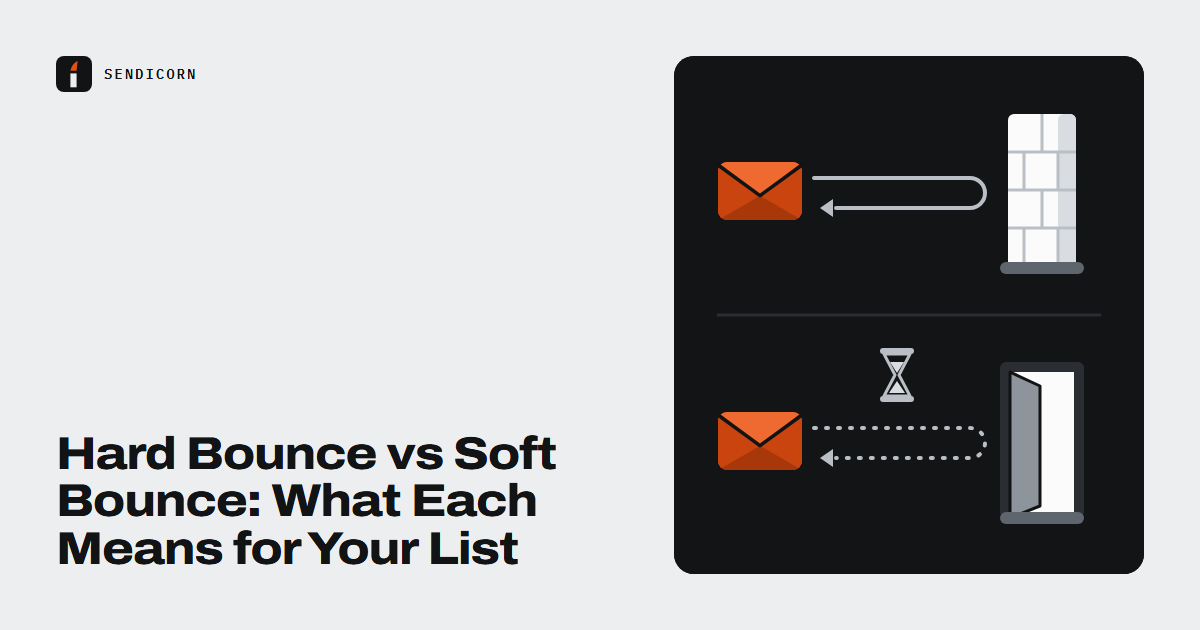
A bounce code starts with a four or a five. Five is a hard bounce, a permanent failure. Stop emailing that address and move it to a suppression list. Four is a soft bounce, a temporary failure like a full inbox. Give it time. Remove it only when the same failure repeats. Some codes point at your own sending, like a rate limit. Check your setup first. Sort your last report by code. The full guide is on sendicorn.com.
A hard bounce is a permanent delivery failure, usually because the address does not exist, and you stop sending to it. A soft bounce is a temporary failure, such as a full inbox or a busy server, and the address deserves another try before you decide. The first digit of the error code points to which one you have: 4 means temporary and 5 means permanent. A third group looks like a bounce but does not describe the address, because the receiving server is blocking or slowing your sending, and that calls for a look at your sending setup.
What hard bounce and soft bounce mean
A bounce is a delivery failure that the receiving mail server reports back to you. The terms hard bounce and soft bounce come from sending services, and they map onto two classes defined in SMTP, the protocol that carries email between servers. A reply code starting with 4 is a transient failure: RFC 5321 says the error condition is temporary and the action may be requested again. A code starting with 5 is permanent, and the sending server should not repeat the exact request. The longer status code defined in RFC 3463 follows the same split. A 5.x.x code is a failure that is not likely to be resolved by resending the message in its current form, and a 4.x.x code is a persistent transient failure, where sending in the future may succeed.
Amazon's SES documentation gives working definitions. A hard bounce is a persistent failure, for example a mailbox that does not exist. A soft bounce is a temporary failure, for example a full mailbox, too many connections or a timeout, and SES retries it several times before it stops (Amazon SES).
The final report of a soft bounce can still carry a code starting with 4. RFC 3464 separates a "delayed" report, where the server keeps trying, from a "failed" report, where it has given up. The same temporary code can appear in both, so a 4 on a failed report means the condition lasted until the server stopped trying.
How to read the code in a bounce report
A bounce report usually shows a three-digit reply code and a status code made of three numbers, such as 550 5.1.1. Both begin with the same class digit. The numbers after it point to the cause: 5.1.1 is a mailbox that does not exist, X.2.2 a full mailbox (RFC 3463 treats it as temporary, and Google lists the 5.2.2 case as full and inactive), and 5.7.1 a delivery that is not authorized (RFC 3463).
The three-digit code alone can mislead. RFC 5321 defines 550 as "mailbox unavailable" and lists both "mailbox not found" and "command rejected for policy reasons" as examples. The status code after it settles the question: 550 5.1.1 is an address problem, and 550 5.7.1 is a policy problem.
Google's page on Gmail SMTP errors, last updated on 10 November 2026, lists these codes for Gmail and Google Workspace recipients (Gmail SMTP errors and codes).
| Code | One reason Gmail reports, shortened | Class |
|---|---|---|
| 550 5.1.1 | The email account does not exist | Permanent |
| 553 5.1.2 | The recipient domain was not found | Permanent |
| 452 4.2.2 | The recipient's inbox is out of storage space | Temporary |
| 552 5.2.2 | The inbox is out of storage space and inactive | Permanent |
| 450 4.2.1 | The recipient is receiving email too quickly | Temporary |
| 421 4.7.0 | The sending IP address is temporarily rate limited because of low reputation | Temporary |
| 550 5.7.1 | The message is likely unsolicited email and was blocked | Permanent |
The third group: blocks that do not describe the address
The last two rows of the table can describe your sending, and then the recipient's address is not the cause. One 421 4.7.0 variant on Google's page says Gmail rate limits the sending IP address because of its low reputation. One 550 5.7.1 variant says Gmail blocks a message that looks like unsolicited email. If you treat these as hard bounces and remove the addresses, the list shrinks and the cause stays where it was.
Google's sender guidelines give the sequence to follow when bounces or deferrals start: "reduce the sending volume until the SMTP error rate decreases. Then, increase slowly again. If bounces and deferrals continue at a low volume, review individual messages to identify problems" (Email sender guidelines).
Another 5.7.1 variant on Google's page is a policy block: the user or domain you are sending to (or from) has a policy that prohibits the email you sent. When one send returns the same 5.7.1 text for many recipients at the same provider, look at your sending setup first.
What to do with each type on your list
A hard bounce ends the sending. Amazon strongly recommends not making repeated delivery attempts to an address that hard bounces, and Yahoo's guidance for senders tells you to remove invalid recipients from your list promptly (Yahoo Sender Hub). Move the address to a suppression list, which is a list of addresses you do not email again, instead of deleting it. A later import is then less likely to email it again.
A soft bounce starts a waiting period. RFC 5321 says a sending server should wait at least 30 minutes between attempts and that the give-up time generally needs to be at least 4 to 5 days, so a single soft bounce report may come from a server that is still trying. The decision to remove the address belongs to the pattern. For repeated temporary errors, RFC 3464 advises a list operator to act on the persistence of failure over a period of time and not on a single report, and it says a "user unknown" error that persisted for several days could be considered a reliable sign that the address is no longer valid. Google lists automatically unsubscribing recipients who have multiple bounced messages among its optional practices. Pick a threshold in your tool, such as the same address failing across several campaigns, and write it down.
A block from the third group leaves the list as it is; follow the sequence above.
Bounce rate: what it counts and what to check
Bounce rate is the share of the emails you sent that bounced. Amazon SES defines it as the percentage of emails sent from your account that resulted in a hard bounce, and it leaves soft bounces out of the calculation (Amazon SES reputation metrics). Amazon adds that email providers read a high bounce rate as a sign that a sender isn't properly managing the recipient list (Amazon SES). Check how your own tool counts, because a rate that includes soft bounces and reputation blocks also reflects your sending conditions.
Thresholds belong to the service you send through. Amazon recommends staying below 5%, places an account under review at 5% or more, and may pause sending at 10% or more. Look up the figures for your own service, and compare each send with your usual rate. A jump after one send points at that send's list, such as a fresh import.
What to look for in a sending tool
You can judge a tool by four behaviors:
- It separates permanent failures from temporary ones and stops emailing the permanent ones without you doing it by hand.
- It shows bounce and spam report rates for each list or project, so one bad list does not hide inside an average.
- It pauses sending, or warns you, before you reach the thresholds of the mailbox providers.
- It brings earlier bounces and unsubscribes along when you import a list, and it shows which rows it leaves out and why.
How Sendicorn handles bounces
Sendicorn is a sending service for newsletters and app email. Addresses that bounce for good or mark your email as spam are suppressed and are not emailed again. Each project has its own sender, contacts and reputation, so a bad list pauses only its own project, and project statistics show Bounced and Spam reports. The acceptable use page asks you to keep a project's bounce rate under 5% and its complaint rate under 0.1%, and Sendicorn pauses a project on its own before it reaches those numbers. Over the last 7 days, once a project has sent at least 100 emails of that kind, marketing bounces above 2% or transactional bounces above 4% trigger a pause, and the organization's owners and admins get an email with the rate that was passed and how to resume. When you move a list from another tool, unsubscribes and bounces come over blocked and repeats and bad addresses stay out. The import preview, described on the home page, shows each row it leaves out and why.
Next step
Open the report of your last campaign and sort the bounces by code. Remove the permanent ones, give the temporary ones time, and check your sending setup for the blocks. When you want these rules applied for you, the Sendicorn home page shows the plans and how each project keeps its own sender, contacts and reputation.