How to Set Up SPF, DKIM and DMARC for Your Sending Domain
A step-by-step setup for the three DNS records that authenticate mail from your own domain: one SPF record, a DKIM key per sending service and a DMARC record that starts at p=none, followed by an alignment check and a test message.
By Muhammed SevimliPublished 6 min readRead in Turkish
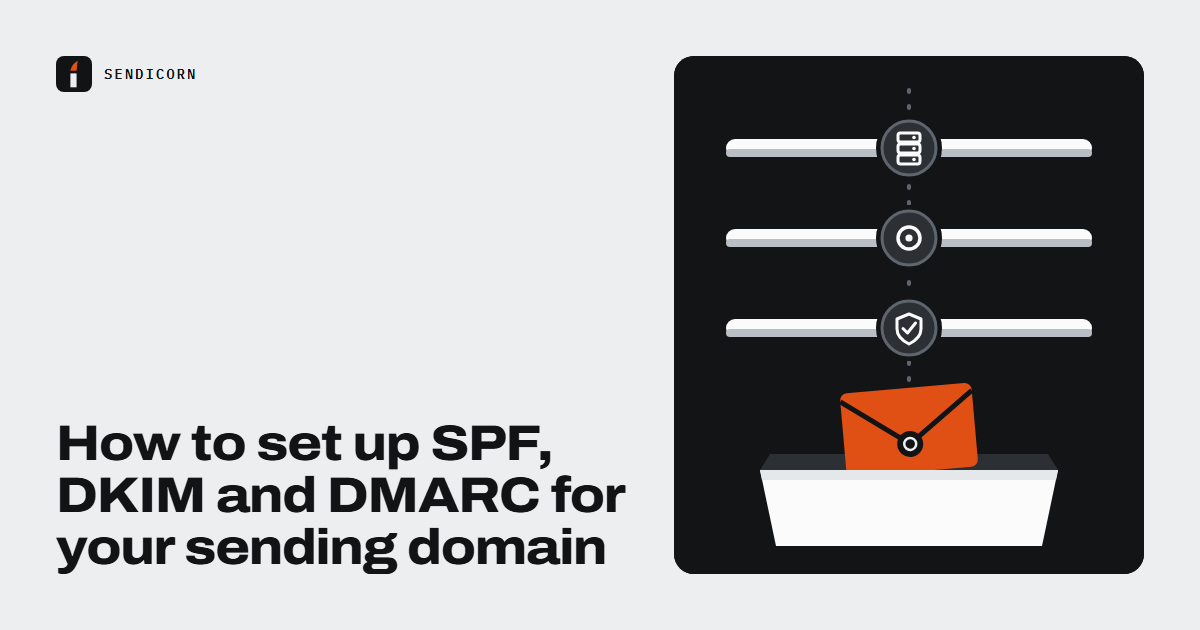
Transcript
Three DNS records authenticate your sending domain. First, one SPF record lists your sending services. Second, each sender gives you a DKIM key to publish. Third, add DMARC at p=none. Then I check alignment, keep it relaxed, and test with a different mailbox. When reports look clean, tighten to quarantine, then reject. The full guide to SPF, DKIM and DMARC is on sendicorn.com.
To set up SPF, DKIM and DMARC, publish three kinds of records at your DNS host, the service that holds your domain's settings. First, one SPF (Sender Policy Framework) record that lists the services allowed to send mail for your domain. Second, a DKIM (DomainKeys Identified Mail) public key from each of those services, so receivers can check the signature on your messages. Third, a DMARC (Domain-based Message Authentication, Reporting and Conformance) record at _dmarc.yourdomain.com that starts with p=none, a policy that only reports. Then check that the domain in your From address aligns with the SPF or DKIM domain, send a test message and tighten the policy once the results are clean.
Step 1: Publish one SPF record that lists your senders
An SPF record is a DNS TXT record, a text entry in DNS, that lists the servers allowed to send email for your domain, and receiving servers check it to confirm a message came from an authorized sender (Google Workspace Admin Help). Start by writing down each service that sends mail as your domain: your mailbox provider, your newsletter tool, your app's transactional email and any helpdesk or invoicing tool. Google's help page also names web servers, on-premise mail servers and outbound gateways.
Then add a TXT record at your DNS host, using @ as the name for the root domain. The value starts with the v=spf1 tag, holds one include: entry per sending service and ends with ~all. Google recommends ~all, which tells receivers to treat mail from unlisted servers as spam, in Google's wording.
SPF record · DNS TXT
v=spf1 include:_spf.google.com include:mail.example.net ~allThe first include is Google's own value for Google Workspace. The second is a placeholder for the value your other sending service gives you. Some DNS hosts want the value wrapped in quotes, and the steps differ by host, so your host's documentation takes precedence.
The ~ in ~all is a qualifier. RFC 7208 (RFC stands for Request for Comments, the numbered documents that describe internet protocols) defines + as pass, - as fail, ~ as softfail and ? as neutral, with + as the default, and calls softfail a weak statement that the host is probably not authorized (RFC 7208). When you add a new sender later, I would add it to this same record, and remove entries for services you stopped using.
Step 2: Publish the DKIM key your sending service gives you
DKIM adds a signature to each message you send. The sending service signs with a private key, and you publish the matching public key in your DNS so receivers can check the signature (Google Workspace Admin Help). The service generates the key pair and shows you what to publish. The signature names your domain in its d= tag and a selector in its s= tag, a label that lets one domain publish several keys, and receivers look the key up at selector._domainkey.yourdomain.com (RFC 6376). Google's example for Google Workspace uses google._domainkey and a value shaped like v=DKIM1; k=rsa; p= followed by the key.
DKIM record · DNS TXT
selector1._domainkey.example.com TXT v=DKIM1; k=rsa; p=<public key from your sending service>Here selector1 stands in for the selector your service gives you. Choose the longer key when the service offers a choice. Gmail requires a DKIM key of 1024 bits or longer for personal Gmail accounts and recommends 2048 bits if your domain provider supports it (Gmail Help). Amazon SES (Simple Email Service) adds a 2048-bit key by default and lets you pick 1024 bits instead, for example when your DNS provider supports just 1024-bit keys (Amazon SES documentation).
Repeat this for each service that sends as your domain. Use a different selector when a name is already taken. Google's page says to switch authentication on in the service after the DNS record is in place, and to check that outbound gateways, which can alter messages, do not interfere with the signature. When you rotate a key later, publish the new key under a new selector and keep the old one in DNS during the transition. RFC 6376 advises against reusing selectors for new keys.
Step 3: Add a DMARC record that starts at p=none
DMARC tells receiving servers what to do with mail from your domain that fails SPF or DKIM checks, and it lets you ask for reports (Google Workspace Admin Help). It is a TXT record published at the name made by putting _dmarc in front of your domain (RFC 9989). A DMARC record example to start from:
DMARC record · DNS TXT
_dmarc.example.com TXT v=DMARC1; p=none; rua=mailto:[email protected]Put v first, because it names the version. The p tag sets the policy: none delivers the message and logs it in a report, quarantine sends it to the recipient's spam folder, and reject refuses it. The rua tag lists the addresses that receive aggregate reports. Google recommends starting with none and moving toward quarantine or reject over time.
Starting at none also matches the policy level both programs name. Gmail asks senders of more than 5,000 messages a day to Gmail accounts to publish DMARC and says the enforcement policy can be set to none (Gmail Help). Yahoo asks bulk senders for a valid DMARC policy of at least p=none, says DMARC must pass, and its page gives no threshold for what counts as bulk (Yahoo Sender Hub). Both programs date from February 2024.
Publish this record after SPF and DKIM are in place, because DMARC judges the results of those two checks.
Step 4: Check DMARC alignment of your From domain
DMARC passes when SPF or DKIM passes for a domain that matches the domain in your From address. Gmail words this for bulk senders: the From domain must be aligned with either the SPF domain or the DKIM domain (Gmail Help). For SPF, the domain that counts is the one in the MAIL FROM address, the address that returns undeliverable messages. For DKIM, it is the domain in the signature's d= tag. A message passes when at least one authenticated domain aligns (RFC 9989).
Relaxed alignment, the default, accepts domains that share the same organizational domain, the registered domain such as example.com. Strict alignment requires identical domains. With a From domain of news.example.com, the two modes treat authenticated domains like this:
| Authenticated domain | Relaxed | Strict |
|---|---|---|
| news.example.com | Aligned | Aligned |
| foo.example.com | Aligned | Not aligned |
| foo.example.net | Not aligned | Not aligned |
Sending services differ on the MAIL FROM part. Amazon SES uses a subdomain of amazonses.com as the default MAIL FROM domain, so SPF passes for that domain. A subdomain of your own domain needs a custom MAIL FROM domain, with its own SPF TXT record and an MX record, which routes incoming mail (Amazon SES documentation). If a service keeps its own MAIL FROM domain, a DKIM signature made with your domain can supply the aligned pass.
I would leave both modes at relaxed. Google warns that strict alignment may cause mail from legitimate subdomains to be rejected or sent to spam.
Step 5: Test a message, then tighten the policy
Once the records are live, send a message from your sending service to a Gmail address. Google's DKIM page says a test message to yourself does not verify DKIM, so use a different mailbox. Open the message's original headers and find the Authentication-Results line. Google lists DKIM=pass or DKIM=OK as passing results, and I look for a pass next to the SPF and DMARC checks too. Repeat the test for each service that sends as your domain, because a pass for one service may not match the result for another.
In Sendicorn, the Domains page shows the records to copy: three DKIM records, a MAIL FROM record with its SPF line, and a suggested DMARC record when the domain has none. The panel checks the records for 72 hours, and Check again runs the check at once (Mailchimp migration guide).
Tightening starts with the aggregate reports sent to your rua address. Read them for senders you forgot to add to SPF or DKIM, because a sender with no aligned SPF or DKIM pass could be quarantined or rejected under a stricter policy. When the reports show your legitimate senders passing, change p=none to p=quarantine, then to p=reject. Each change is one edit to the same TXT record, and you can read the reports again after it.
Next step
Moving from another email tool? Find yours in the migration guides for 20 email tools.